Triggers
Triggers are a log line analysis mechanism in Senta that allows automatic execution of actions when specific conditions are detected.
The main purpose of triggers is to monitor stream status and automatically restart streams when problems are detected.
The system supports two types of triggers:
- Static
- Dynamic (custom)
Static Triggers
Section titled “Static Triggers”Static triggers are built into the system. Currently, one static trigger is available — the bitrate analysis trigger.
Static Bitrate Trigger
Section titled “Static Bitrate Trigger”- Has a fixed ID = 1
- Pre-installed in the system
- Cannot be deleted
- Can be assigned and unassigned from channels
How It Works
Section titled “How It Works”Despite the name, the trigger doesn’t actually parse or compare bitrate values — it doesn’t measure stream parameters through any external means (e.g. ffprobe) at all. Its only source of data is the text progress output the ffmpeg process itself prints: the trigger watches the time= field in that output (the timestamp of the last frame processed). If that timestamp stops advancing between log lines, ffmpeg is stuck — even though the process is technically still running — and the trigger treats it as a stream freeze.
In such cases, the trigger automatically performs a stream restart.
How to Assign a Static Trigger
Section titled “How to Assign a Static Trigger”-
Go to the
Triggerspage -
Select the
Bitratetrigger -
Check the boxes for the desired streams in the stream list
-
Save changes
After this, the selected channels will be automatically monitored for bitrate.
Dynamic (Custom) Triggers
Section titled “Dynamic (Custom) Triggers”Dynamic triggers allow you to create your own log analysis rules.
The system can:
- search for substring occurrences in log lines
- check log lines against regular expressions
When a condition matches, a specified action is executed (e.g., stream restart).
Creating a Custom Trigger
Section titled “Creating a Custom Trigger”To create a new trigger:
-
Go to the
Triggerspage -
Click
Add trigger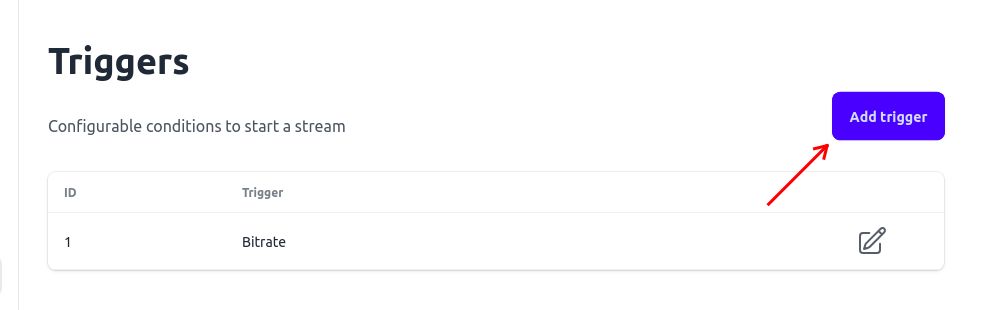
-
Enter the trigger name
-
If necessary, enable the
Regular expressionoption -
Enter the text to look for, in the
Substring matchfield (orRegular expression, if you enabled that option above — the field’s label changes accordingly)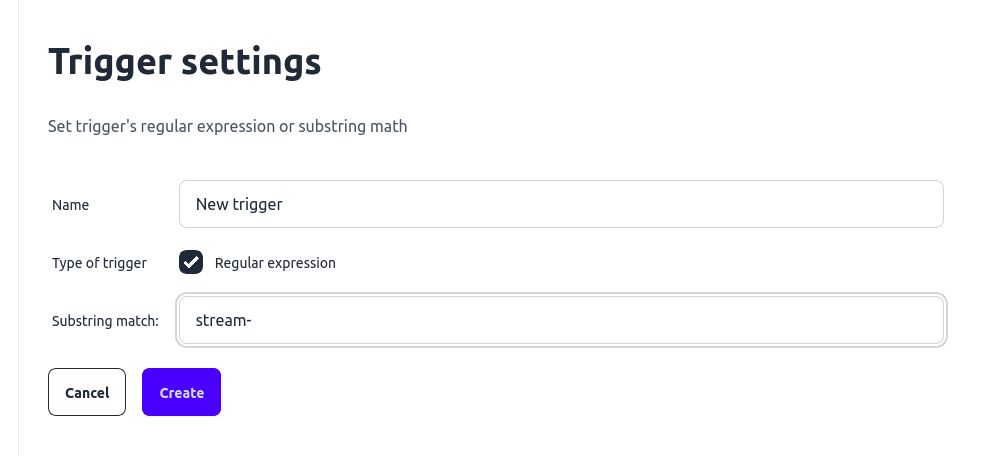
-
Save the trigger
-
Select the list of streams to which this trigger should be applied
After saving, the trigger will start analyzing logs of the selected streams.