Working with Files
Senta provides the ability to work with files. You can use a file or a folder of files as either the input or the output of a stream.
For example:
- You can add a static image as a channel logo.
- You can create a dump of the stream and download it locally.
Enabling File System Access
Section titled “Enabling File System Access”By default, Senta does not expose the server’s file system - it’s a separate feature you have to turn on explicitly. To enable it, go to Settings and turn on the Display file system flag.
The Senta binary must be started by a user who has access to the file system - otherwise, even with the flag on, you’ll see an empty file browser or an access error when trying to open a folder.
Once file system access is enabled, the Files tab becomes available. There you can:
- Upload and download files
- Create folders
Using Files in Streams
Section titled “Using Files in Streams”Instead of typing a file path into the Input field by hand, you can pick it through the file browser. In the Streams section, open the settings for the stream you want and follow these steps:
-
Click
Set filenext to theInputfield.
-
In the modal window, use the file browser to select the desired file or folder. If the browser is empty or shows an error, go back to Enabling File System Access above - most likely the flag isn’t on yet, or the Senta process doesn’t have permission to read that directory.
-
Confirm the selection by clicking
Set.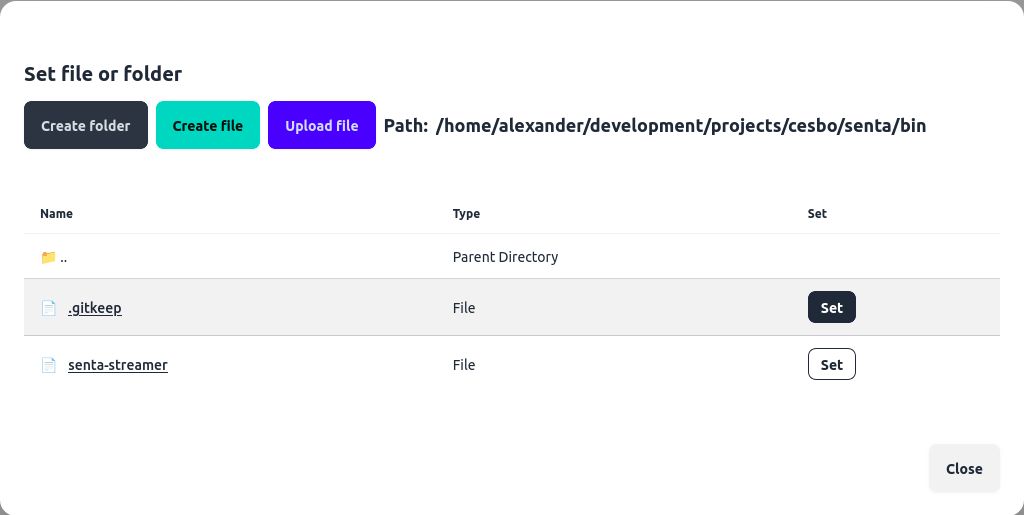
The selected file path will appear in the input field and will be applied the next time the process starts - if the stream is already running, restart it for the change to take effect.