Add stream
After adding a profile, you can add a stream. To do this - visit the Streams page and click the Add stream button.

This opens a dialog asking how you want to create the stream:
- From transcoding profile — select an existing profile and fill in its variables (inputs, outputs, etc.). This is the flow described below.
- As ffmpeg launch string — enter a full ffmpeg command directly, without creating a profile first. Senta automatically creates an auto-generated profile for it (named
PROFILE FOR <stream name>), which shows up in the regular profiles list like any other. Convenient for one-off streams and quick experiments.
For this example, pick From transcoding profile, then set input and output parameters.

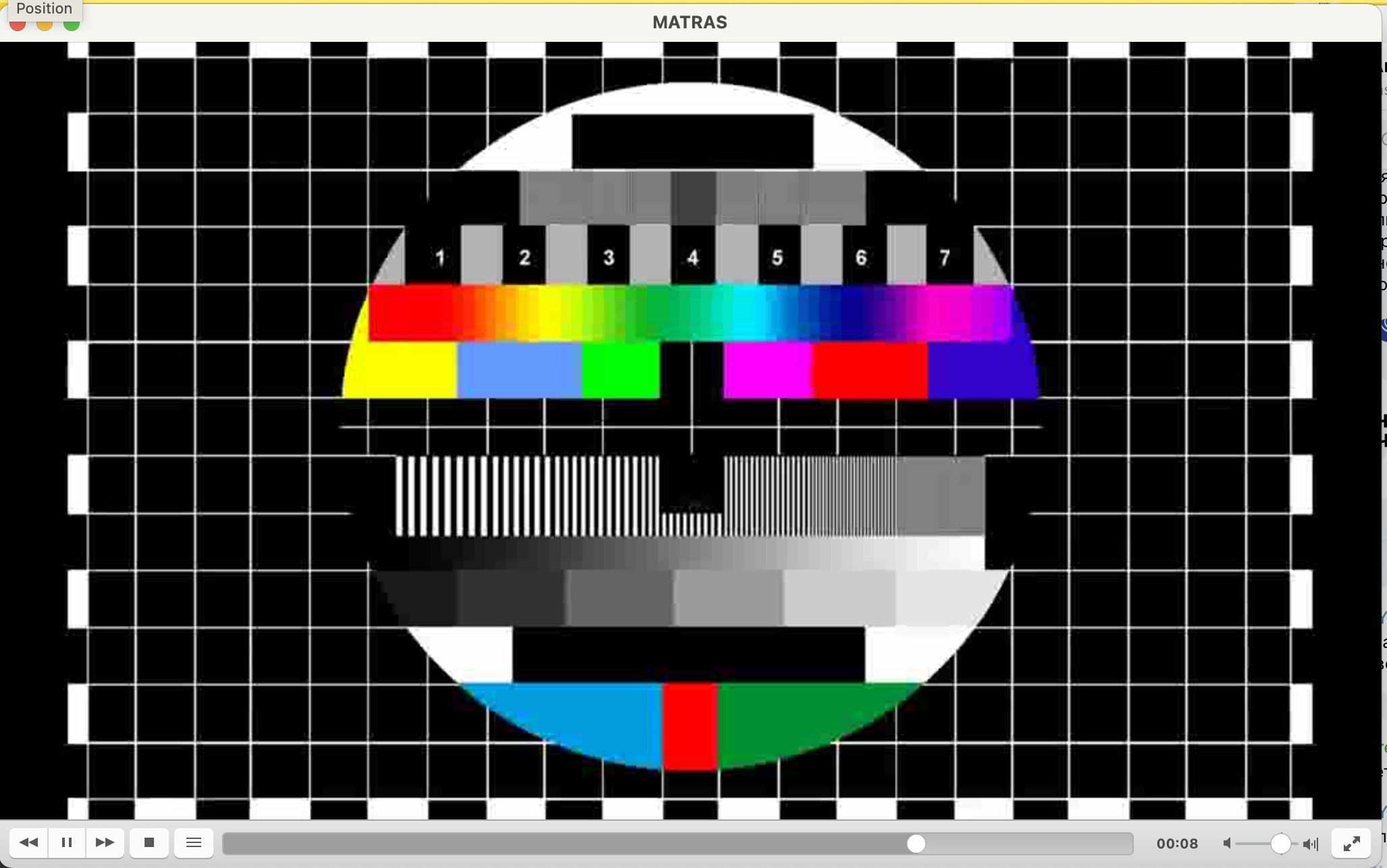
Once saved, the stream shows up in the table on the Streams page. And then you can see the result in VLC!
If nothing plays, open the stream log via the log link in the stream’s row - it shows ffmpeg’s own output, including errors like a wrong input file path or a port that’s already in use.